
Pair from the desktop menu
Open Remote Control in ApplicantAlly, then choose that desktop from your account on the phone. You can prepare the phone panel before recording starts.
New · Desktop Remote Control
Stay focused on the conversation while your phone becomes a private control surface for the native desktop interview copilot.
Request answers, analyze the desktop screen, manage recording, navigate responses, and adjust the ApplicantAlly window without touching the interview computer.
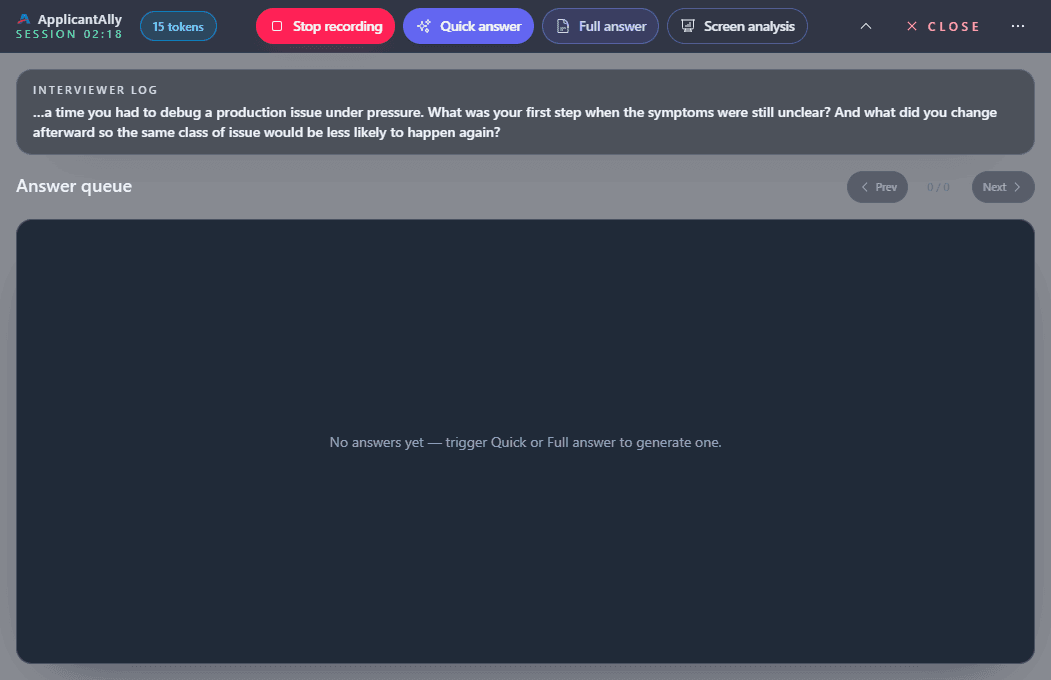
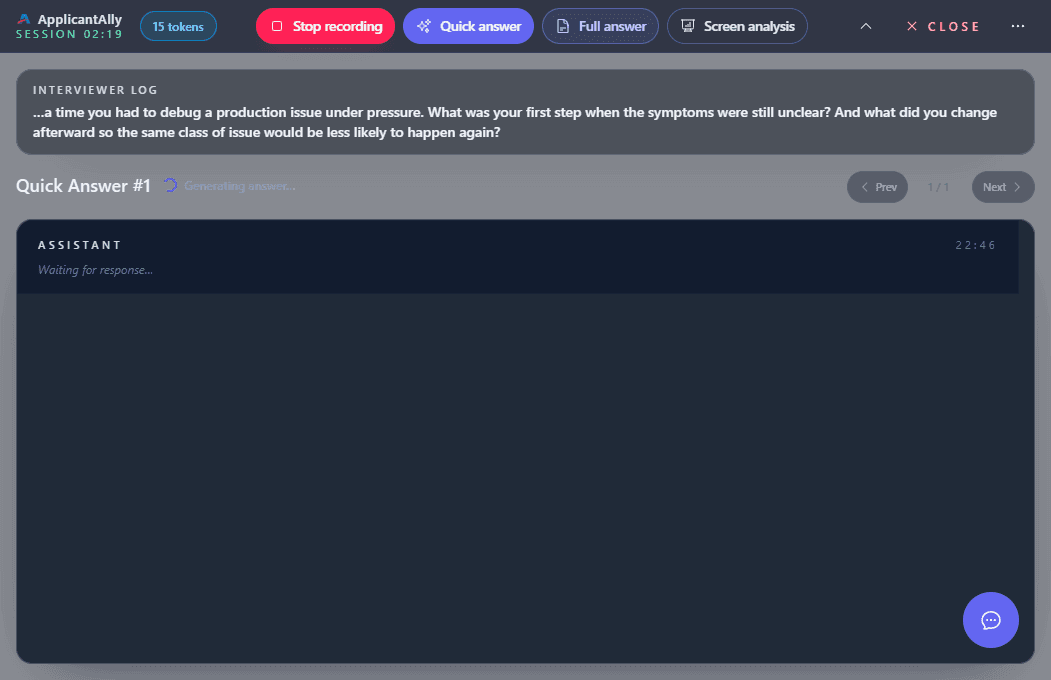
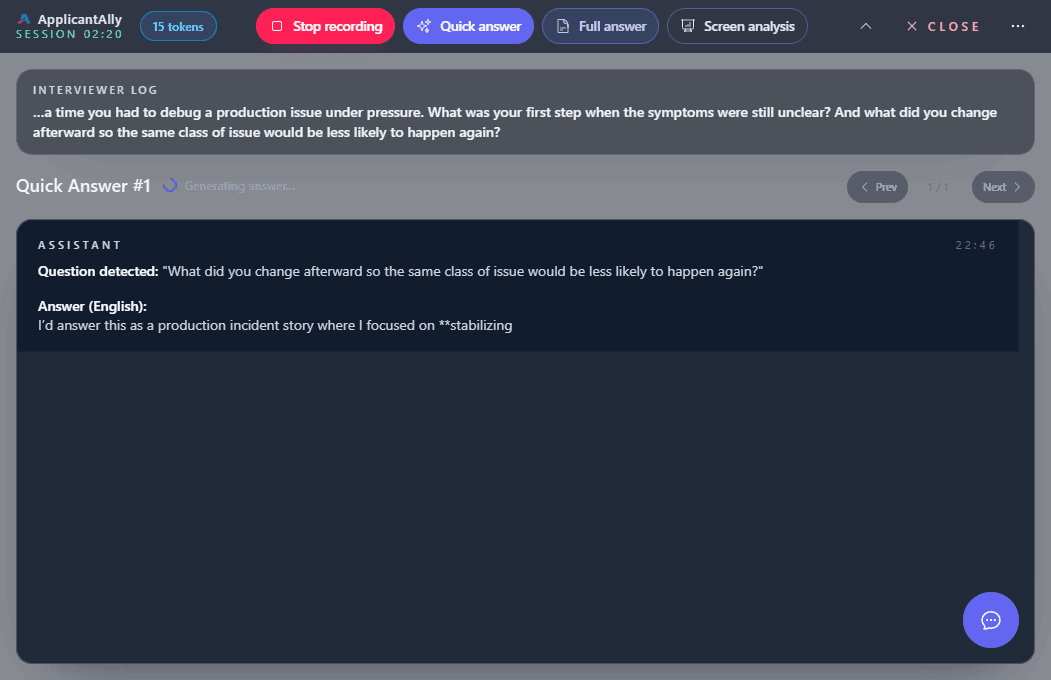
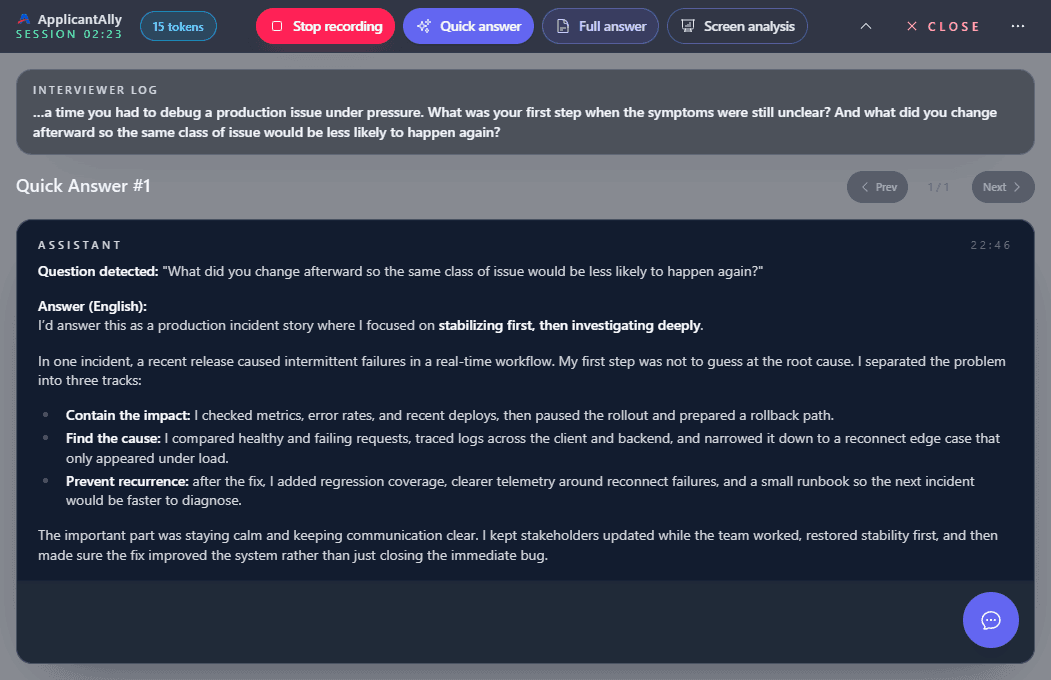
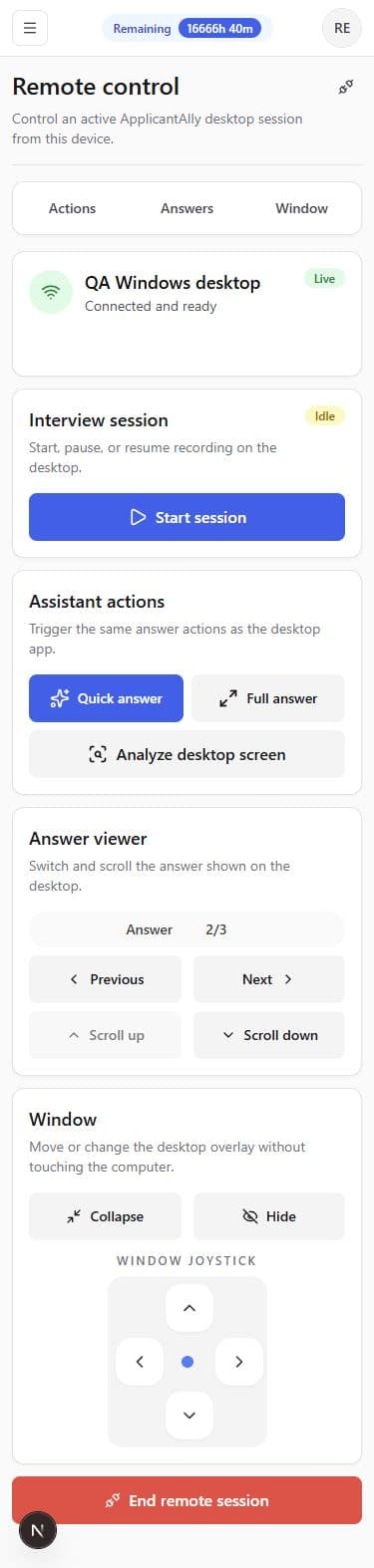
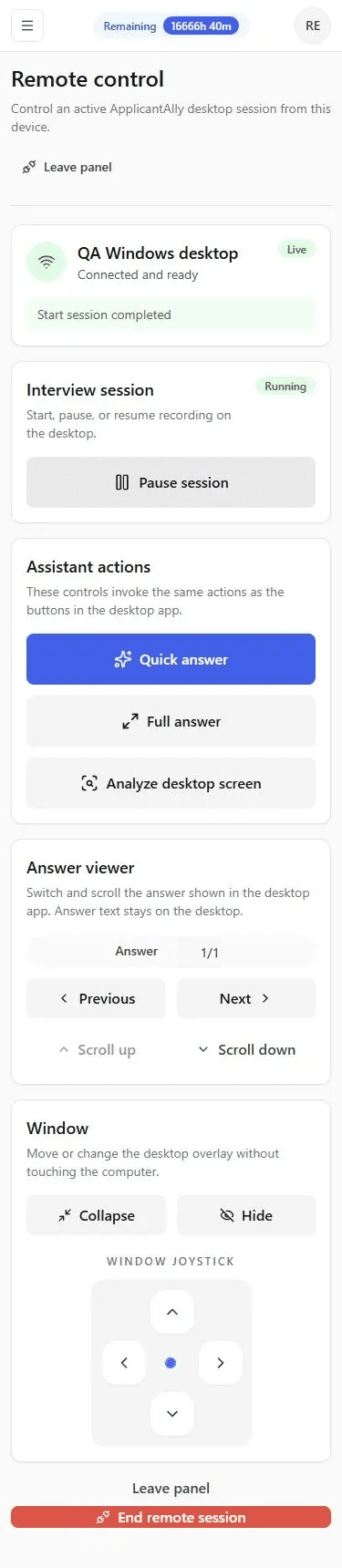
Open Remote Control on your phone and confirm that the desktop session is connected and ready.
Every interface shown here is captured from the working ApplicantAlly desktop app and mobile control panel.
How it works
Pair in advance or connect during a live interview. The additional remote connection exists only while you are using it.
Use the Remote Control menu before the interview, or start a desktop session and connect only when you need the phone panel.
Sign in to the same ApplicantAlly account, open Remote Control, and select the desktop session waiting for you.
Request answers or Screen Analysis, start or pause recording, navigate responses, and adjust the app window.
Leave the phone panel or end the remote session at any time. The dedicated remote connection is not kept open afterward.
Two ways to connect
Remote Control adapts to both workflows without keeping another connection open for every desktop user.
Open Remote Control in ApplicantAlly, then choose that desktop from your account on the phone. You can prepare the phone panel before recording starts.
Start the interview normally. The active desktop appears in your account, and Remote Control connects only after you activate it from the phone.
Phone controls
The phone panel invokes the same product actions as the desktop interface. It adds a second control surface rather than a separate interview session.
Trigger Quick Answer, Full Answer, and Analyze desktop screen exactly like the buttons in the desktop app.
Start, pause, resume, or end interview recording while the desktop app handles the session.
Move between generated answers and scroll the answer displayed on the desktop overlay.
Collapse, hide or show, and move the ApplicantAlly window around the interview screen.
When the task is visible, read how Screen Analysis captures context before triggering it from your phone.
Connection and privacy
The native desktop app remains responsible for the interview. The phone gets a focused set of ApplicantAlly controls.
The phone controls ApplicantAlly. It does not receive a live video feed of the interview computer.
The additional remote connection opens only after you activate Remote Control and closes when remote control ends.
The phone and desktop use the same signed-in ApplicantAlly account, and you choose which available desktop to control.
Audio capture, screen analysis, generated answers, and the active interview session continue to run in the desktop app.
Stealth Mode explains desktop window visibility during a call. If you use Panic Mode, the desktop app exits and the Remote Control connection closes.
Two different phone workflows
Use Remote Control when the native desktop app should capture audio and display answers. Use the Mobile Web App when the phone should run the assistant independently.
The phone controls the active native desktop app.
The phone listens and runs interview support on its own.
Explore Mobile Web AppRemote Control FAQ
Remote Control turns a phone or another browser device into a control panel for the native ApplicantAlly desktop app. It can trigger Quick Answer, Full Answer, and Screen Analysis; start, pause, resume, or end the interview session; navigate and scroll answers; and collapse, hide, show, or move the ApplicantAlly window.
No. Remote Control is a companion for the native desktop app: the desktop captures audio, runs the interview session, and displays answers while the phone sends controls. The Mobile Web App is a standalone interview assistant running in the phone browser and listens through the phone microphone.
No. You can open Remote Control from the desktop app menu and pair your phone before recording begins. You can also start a desktop interview normally and activate Remote Control later from your account while that session is active.
No. Remote Control is not a remote desktop or screen-mirroring service. The phone sends ApplicantAlly commands and receives connection and action status. Screen Analysis still behaves like the corresponding desktop app button and the answer remains displayed on the desktop.
No. The desktop app opens the dedicated remote connection only after Remote Control is activated. The connection closes when you end remote control, so users who do not use the feature do not keep an extra remote-control connection open.
The control panel is designed primarily for modern phone browsers, but it can also be opened from another supported browser device signed in to the same ApplicantAlly account.
Download ApplicantAlly, sign in with your account, and test Remote Control before your next live interview.